How do I use PlagiarismSearch in Canvas?
Once your Canvas administrator has installed and enabled PlagiarismSearch, you can add it to assignments to automatically check student submissions for plagiarism and AI-generated text.
Before you start: Your Canvas administrator must install and make PlagiarismSearch available for your account. If PlagiarismSearch does not appear when you try to add it to an assignment, contact your Canvas administrator.
Enable PlagiarismSearch for an assignment
Note: Document processing only applies to assignments that accept File Uploads as an online submission type.
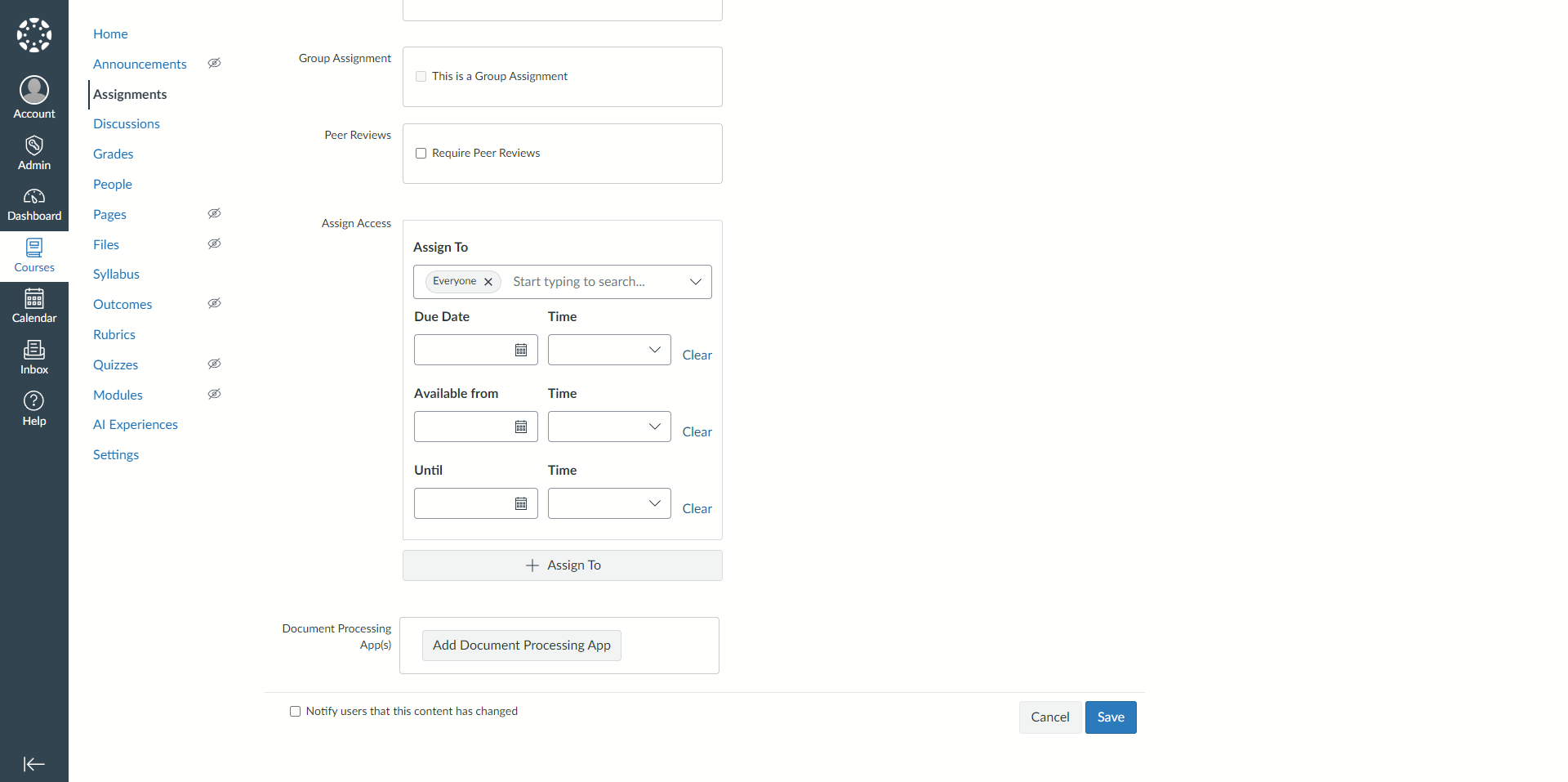
1. Open the assignment settings
In your course, create or edit an assignment and scroll to the bottom of the page. Under Document Processing App(s), click the Add Document Processing App button.
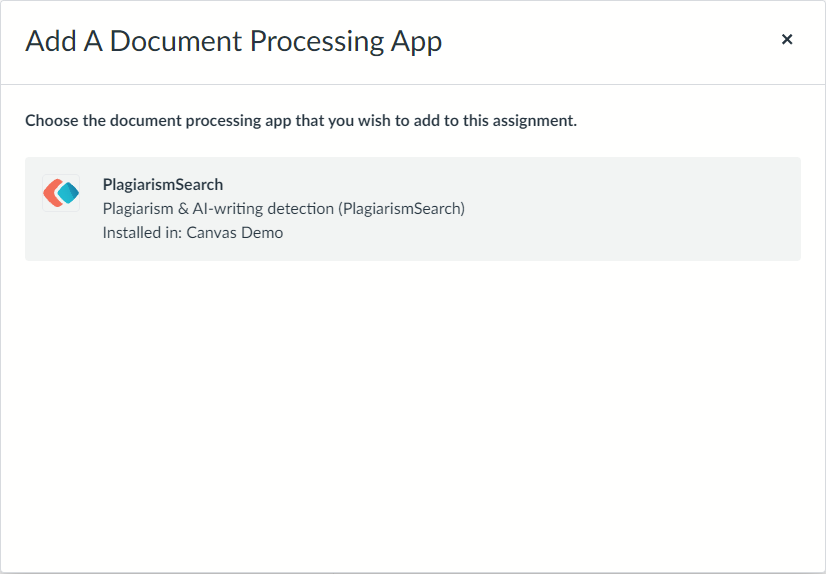
2. Select PlagiarismSearch
In the Add A Document Processing App window, click PlagiarismSearch.
3. Save the assignment
PlagiarismSearch is added to the Document Processing App(s) list. Click the Save button to apply the change to the assignment.
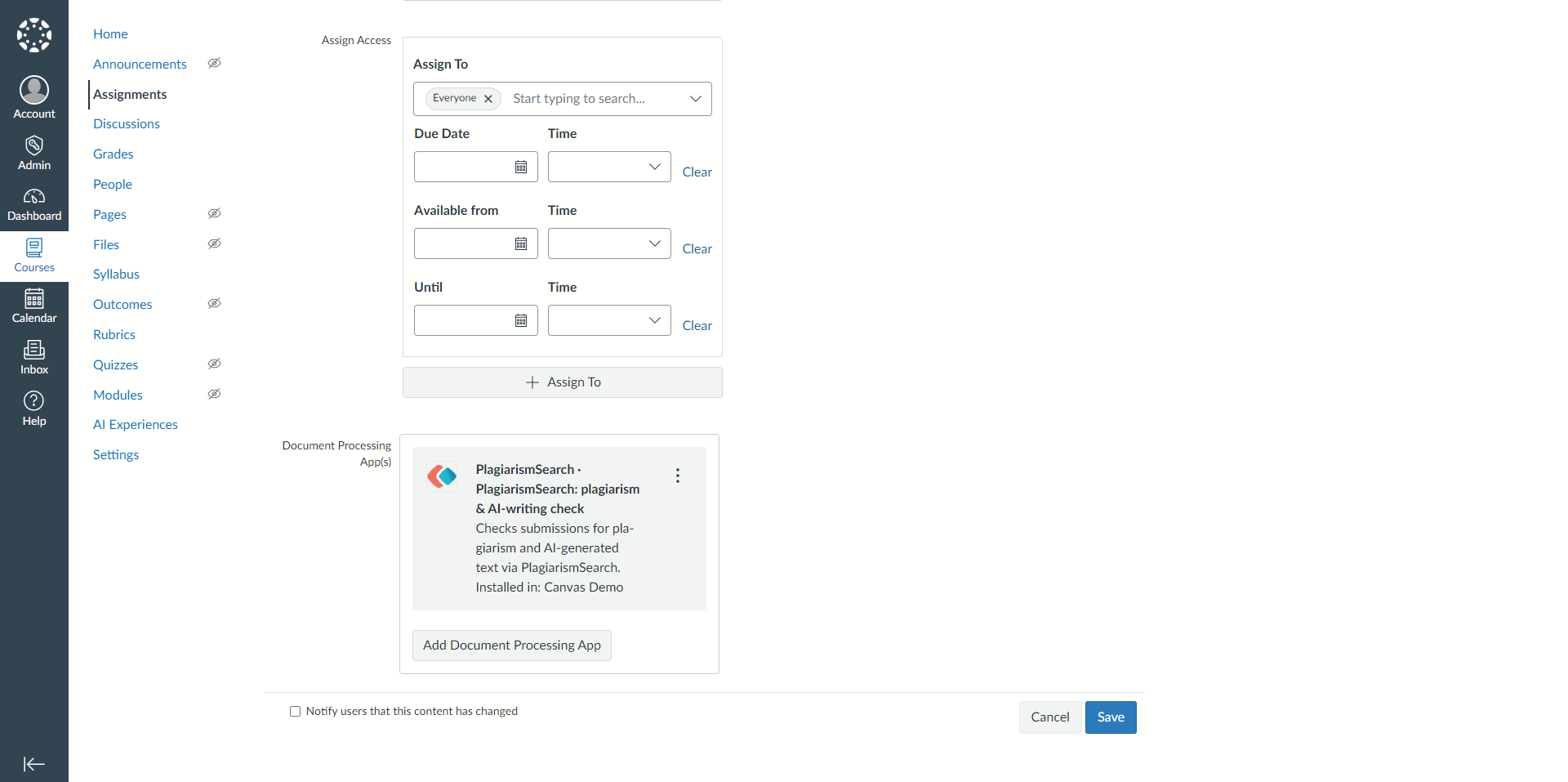
Note: The ⋮ menu on the app card opens the PlagiarismSearch settings for this assignment, unless your administrator has locked them, and lets you remove the app again.
4. View the reports in SpeedGrader
Every file submitted to this assignment is checked automatically. Students do not need to do anything.
Open SpeedGrader and look at the submission sidebar. Once a file has been processed, the plagiarism and AI-writing scores appear there, together with a link to the full report.
Need help?
If PlagiarismSearch is not available when adding a Document Processing App, contact your Canvas administrator.
If you are a Canvas administrator and still need to install the app, see the Canvas Admin Guide.