Canvas Plagiarism Checker & AI Writing Detection
Integrate PlagiarismSearch into your Canvas LMS workflow to check student submissions for matching text and indicators of AI-generated writing. Instructors can review similarity scores, AI-writing results, and links to detailed reports in Canvas SpeedGrader.
LTI 1.3 Integration · File Uploads & Text Entry · SpeedGrader Reports
Submissions
- File Uploads
- Text Entry

LTI 1.3

- Similarity Score
- AI Probability
- Detailed Reports
Results in SpeedGrader
How PlagiarismSearch Works in Canvas
PlagiarismSearch connects to Canvas through an LTI 1.3 document processing integration. Once the app is installed and enabled for an eligible assignment, submitted work can be checked as part of the existing Canvas workflow.
-
01
Connect the integration
A Canvas administrator installs PlagiarismSearch using Dynamic Registration and makes the app available in the appropriate Canvas account or courses.
-
02
Enable assignment checking
An instructor adds PlagiarismSearch as a document processing app to an eligible assignment and configures the available checking options.
-
03
Students submit their work
Students complete their assignments using Canvas File Uploads or Text Entry. The submission is sent for processing when the integration is enabled.
-
04
Review the results
After processing, instructors can see the returned similarity and AI-writing indicators, when available, in SpeedGrader and open the corresponding detailed reports.
Review Similarity and AI Results in SpeedGrader
PlagiarismSearch returns checking results to the grading environment your instructors already use. Instead of relying on a single number, reviewers can open detailed reports and examine the results in context.
Close-up of the outlined area
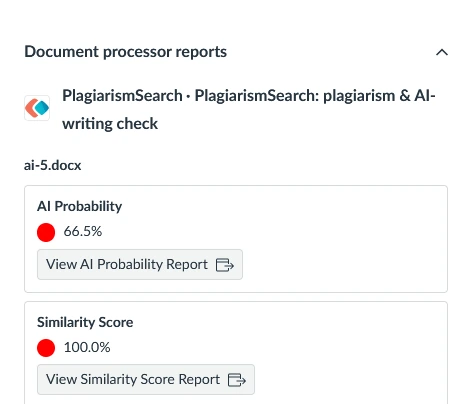
Close-up of the outlined area
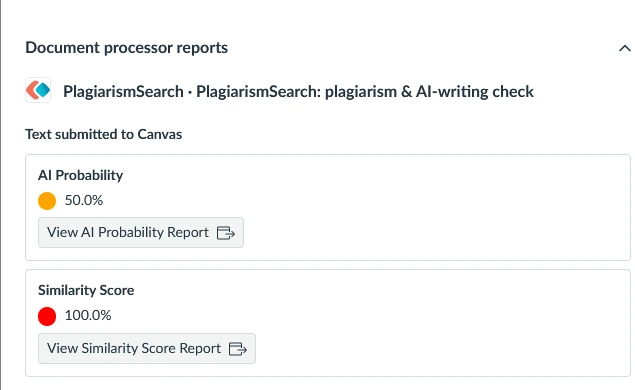
About these screenshots: These examples show how PlagiarismSearch results appear in Canvas SpeedGrader. Some on-screen labels, grading details, and comments were adjusted for presentation; the submitted content and PlagiarismSearch results remain unchanged.
-
Similarity Score
See the reported level of matching or similar text and open the detailed similarity report to examine the results and associated sources.
-
AI Probability
When AI-writing analysis is enabled and a result is available, view a separate AI probability indicator and access its corresponding report.
-
Detailed Reports
Use the report links in SpeedGrader to move from a summary indicator to a more detailed review of the submitted work.
Important: A similarity score is not an automatic determination of plagiarism. Reported matches require review in context.
Plagiarism Checking and AI Writing Detection Are Separate Analyses
Plagiarism and AI-generated writing are different questions. PlagiarismSearch provides separate analyses so instructors can consider each result for its intended purpose.
Plagiarism Checking
Identify matching or similar passages in submitted work and review the sources associated with those matches.
Similarity findings can help instructors examine quotations, citations, reused material, and passages that may require closer attention. A match does not automatically mean that plagiarism has occurred.
AI Writing Detection
Analyze text for patterns associated with AI-generated writing when the AI-checking feature is enabled.
The resulting AI probability indicator can support further review, but it does not establish who wrote a document or whether academic misconduct occurred.
Two separate results. One informed review process.
Check File Uploads and Text Entry Assignments
PlagiarismSearch supports two common Canvas assignment submission types.
File Uploads
Students can submit supported documents through Canvas assignments. PlagiarismSearch processes eligible files and returns the available checking results for instructor review.
Text Entry
Students can also submit text directly in Canvas. Supported Text Entry submissions can be processed without requiring students to create a separate document for upload.
Both submission types are part of the existing Canvas assignment workflow. Actual file acceptance depends on the supported formats and applicable Canvas settings.
Configure Checking and Report Access
Different institutions and assignments may require different approaches to reviewing student work. PlagiarismSearch provides configuration options to help administrators and instructors adapt checking to their workflows.
- Plagiarism and AI-Writing Checks
- Configure the available checking options according to the assignment's requirements. AI-writing analysis is separate from plagiarism checking.
- Comparison Sources
- Control the available comparison-source settings used for plagiarism analysis, subject to the institution's configuration and enabled features.
- Report Visibility
- Manage available report-access settings, including whether students can view results where supported by the integration and Canvas configuration.
- Document Storage
- Configure applicable storage behavior separately from the checking process, including whether submitted work is retained for future comparisons.
Available controls and permissions depend on the institution's integration configuration.
Get Started with PlagiarismSearch for Canvas
Whether you manage Canvas across an institution or teach within an existing Canvas environment, follow the guide that matches your role.
For Canvas Administrators
Install and configure the PlagiarismSearch LTI 1.3 integration.
- Open Canvas Apps.
- Start the Dynamic Registration process.
- Connect the integration to your PlagiarismSearch account.
- Configure the app's availability for the appropriate Canvas environment.
For Canvas Instructors
Enable PlagiarismSearch within an eligible assignment after the app has been made available by your administrator.
- Open or create a Canvas assignment.
- Add the PlagiarismSearch document processing app.
- Save the assignment with the appropriate settings.
- Review checking results in SpeedGrader.
Need help with deployment? Contact our team to discuss your institution's Canvas configuration.
Understand How Submitted Work Is Handled
Checking submitted work and storing it for future comparisons are separate parts of the workflow.
-
01
Submission processing
When an eligible assignment uses PlagiarismSearch, supported submitted content is transferred for the configured analysis.
-
02
Report generation
PlagiarismSearch processes the submission and returns the available results to Canvas. Detailed reports can be accessed through their corresponding links.
-
03
Storage configuration
Whether a submission is retained in PlagiarismSearch Storage for future comparisons depends on the applicable storage settings. Processing a submission does not, by itself, mean that the document becomes a permanent comparison source.
Institutions should review their integration settings and applicable data-handling policies before deployment.
Bring Plagiarism Checking into Your Canvas Workflow
PlagiarismSearch is designed to support institutions that want to review student submissions within their established learning-management processes.
Work Within the Grading Workflow
Instructors can access returned checking indicators in SpeedGrader, alongside the assignments they already review.
Configure Assignment Checking
Administrators and instructors can use the available integration settings and permissions to determine how checking is applied to supported assignments.
Review Evidence, Not Just Scores
Detailed reports provide information for further review. Instructors remain responsible for interpreting the results and applying their institution's academic-integrity policies.
Frequently Asked Questions About Canvas Integration
Yes. PlagiarismSearch provides an integration based on LTI 1.3 document processing for supported Canvas assignment workflows. A Canvas administrator must install and configure the app in a compatible Canvas environment.
Yes. The integration supports both Text Entry and File Upload submissions for eligible Canvas assignments.
After processing, the available results appear in Canvas SpeedGrader. Instructors can review similarity and AI probability indicators, when returned, and use the report links to access more detailed information.
Canvas supports workflows that allow compatible third-party tools to analyze student submissions. The checking capabilities depend on the tool installed and enabled by the institution. PlagiarismSearch provides a separate plagiarism-checking and AI-writing analysis integration.
Student access depends on the report-visibility settings and permissions configured for the integration. Administrators and instructors should confirm the available access options for their Canvas environment.
No. Plagiarism checking identifies matching or similar content, while AI-writing detection analyzes indicators associated with AI-generated text. Neither result alone establishes plagiarism, authorship, or academic misconduct.
Storage behavior depends on the configured settings. Submitting work for analysis and retaining it as a future comparison source are separate actions within the workflow.
A Canvas administrator can follow the PlagiarismSearch Canvas Admin Guide to install the LTI 1.3 app through Dynamic Registration and configure its availability. After installation, instructors can follow the Canvas Teacher Guide to add PlagiarismSearch to eligible assignments.
Add PlagiarismSearch to Your Canvas Workflow
Check student submissions and review detailed similarity and AI-writing results within your institution's Canvas process. Follow our setup instructions or contact our team to discuss your institution's requirements.