How do I install PlagiarismSearch in Canvas?
PlagiarismSearch is an LTI 1.3 Document Processing App (Asset Processor). Once it is connected, every file a student submits to an enabled assignment can be checked for plagiarism and AI-generated text, with the reports available in SpeedGrader.
Setup has two parts:
- A Canvas administrator installs the app for the account.
- A teacher enables it on each assignment that should be checked.
Requirements:
- This guide requires a Canvas account administrator role.
- You need access to your PlagiarismSearch account and the Canvas integration settings at PlagiarismSearch Canvas Integration . All checks made from this Canvas account are billed to that PlagiarismSearch account.
- The app is installed through Dynamic Registration, so no manual JSON/XML configuration, client IDs, or shared secrets are needed.
Install the app in your Canvas account
1. Open the Apps page
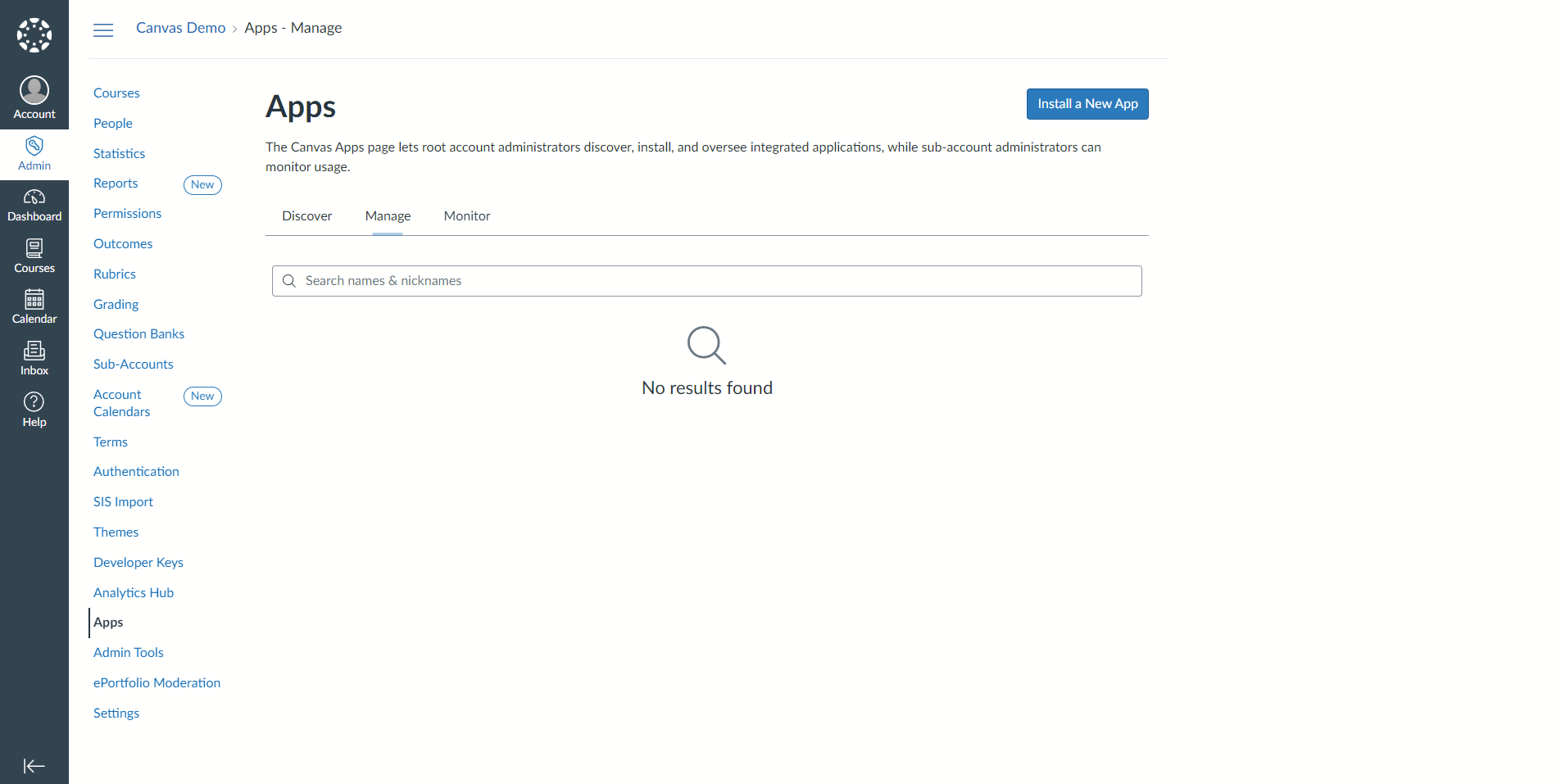
Sign in to Canvas with your admin account. In Global Navigation, click Admin, select your account, then click the Apps link. Open the Manage tab and click the Install a New App button.
2. Start Dynamic Registration
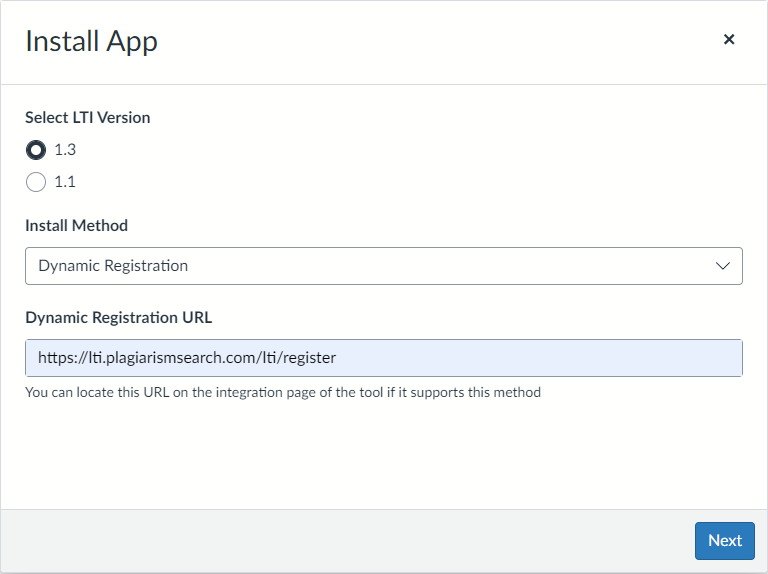
In the Install App window:
- Select LTI Version — choose 1.3.
- Install Method — choose Dynamic Registration.
-
Dynamic Registration URL — enter
https://lti.plagiarismsearch.com/lti/register
Click the Next button.
3. Enter your PlagiarismSearch API credentials
Canvas contacts PlagiarismSearch and shows the PlagiarismSearch settings screen inside the wizard. Enter the API login and API password of your PlagiarismSearch account and click the Save button, then click Next.
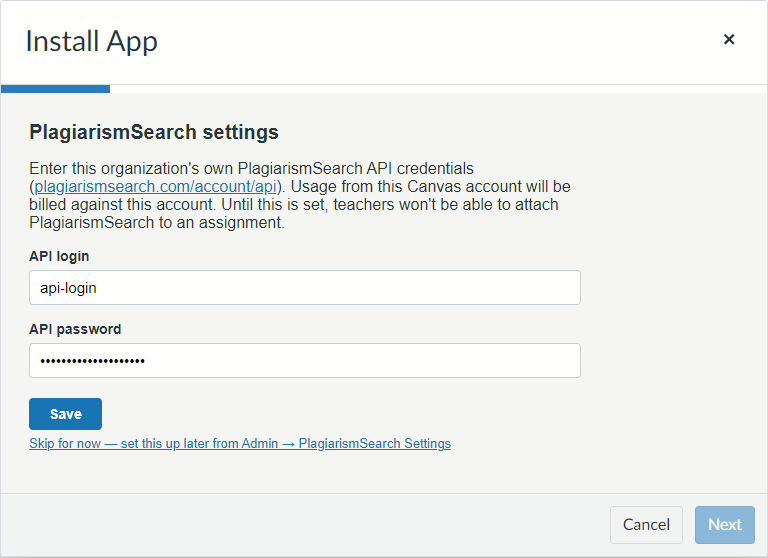
Note: You can also click Skip for now and add the credentials later from Admin → PlagiarismSearch Settings. Until the credentials are saved, teachers cannot attach PlagiarismSearch to an assignment.
4. Confirm the remaining wizard screens
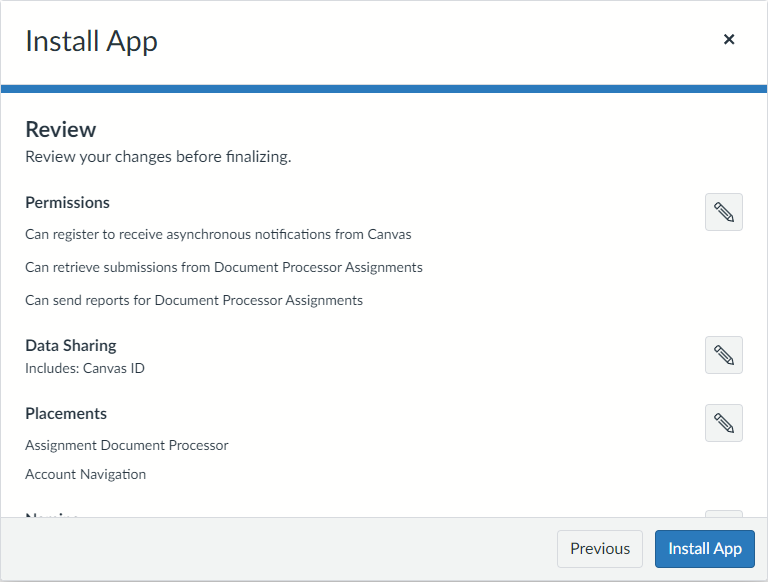
Click Next through the Permissions, Data Sharing, Placements, Naming, and Icon screens. PlagiarismSearch supplies sensible defaults for all of them, so in most cases you can accept them as they are.
On the final Review screen, check the summary and click the Install App button.
5. Make the app available
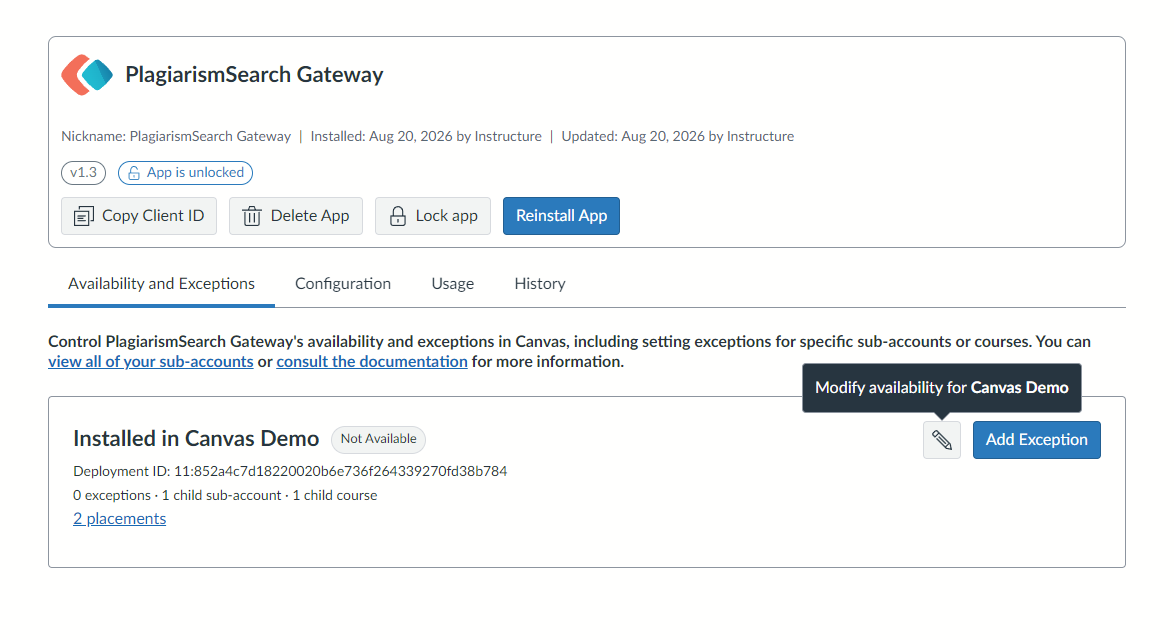
A newly installed app is listed as Not Available, which means teachers cannot select it yet.
On the app’s page, open the Availability and Exceptions tab and click the pencil icon (Modify availability).
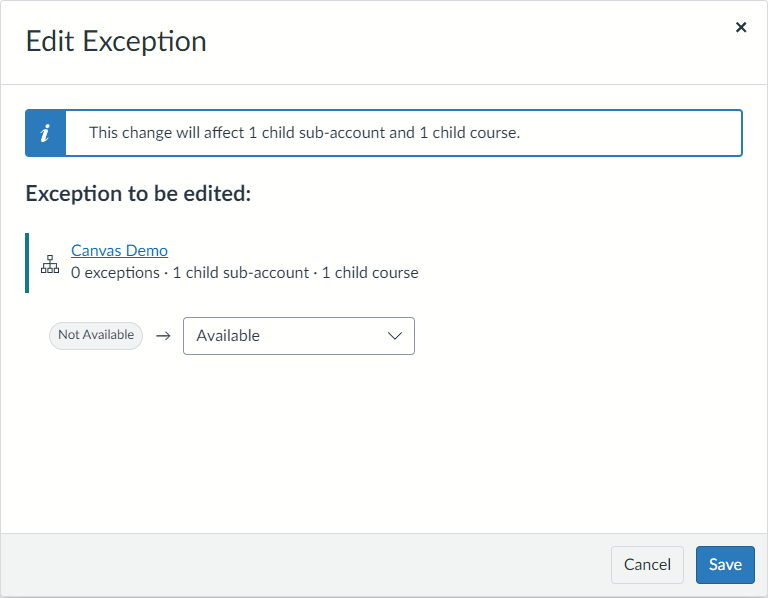
In the Edit Exception window, change Not Available to Available and click the Save button.
Note: To enable PlagiarismSearch only for specific sub-accounts or courses instead of the whole account, use the Add Exception button on the same tab.
Next step: Enable PlagiarismSearch on assignments
Once the app is installed and available, teachers can add PlagiarismSearch to individual assignments.
Official Canvas documentation
Canvas’s interface changes from release to release. If a screen looks different from the screenshots above, see the official Instructure guides: